How to Secure Your Home Wi-Fi Network from Cyber Threats

Share
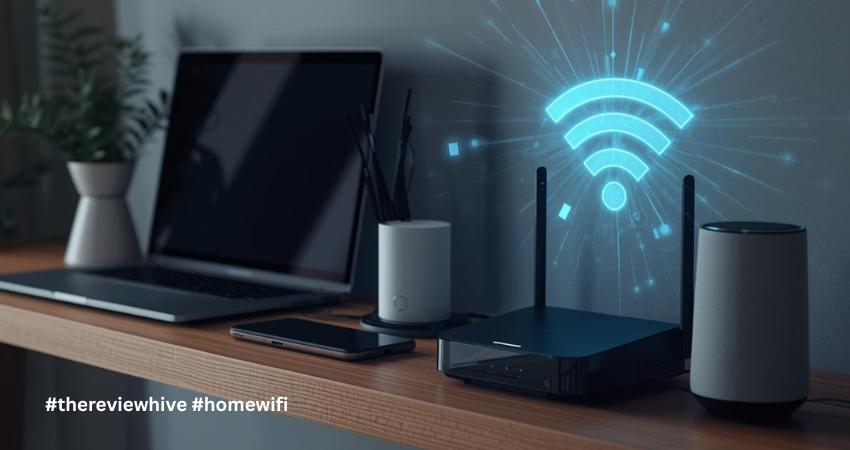
Most people secure their laptops and phones. But the device that quietly connects everything in the house often receives the least attention, the Wi-Fi router.
Your router sits at the center of your digital life. Phones, laptops, smart TVs, home cameras, and even kitchen appliances rely on it to access the internet. If that router is poorly secured, attackers don’t need to compromise each device individually. Gaining control of the network can expose everything connected to it.
And home networks are often easy targets. Many routers still run default settings years after installation. Weak passwords, outdated firmware, and unsecured IoT devices create openings that attackers look for.
According to several cybersecurity reports, home routers and IoT devices remain among the most frequently scanned systems on the internet. Automated tools constantly search for misconfigured routers because they can be exploited with very little effort.
The good news is that strengthening your home Wi-Fi network doesn’t require advanced technical skills. A few deliberate settings can significantly reduce common cyber risks.
Key Statistics on Home Wi-Fi and IoT Security
- The average home network now contains around 20–22 connected devices, including phones, smart TVs, speakers, cameras, and appliances.
- Security monitoring shows that home networks experience roughly 10 cyber attack attempts per day on average, most of them automated scans looking for weak routers or IoT devices.
- The number of connected IoT devices worldwide crossed 18.5 billion in 2024 and is expected to exceed 21 billion devices by 2025.
- Routers account for more than half of the most vulnerable connected devices in many home and small office environments.
- One in three data breaches now involves an IoT device, showing how frequently poorly secured smart devices are exploited.
- Analysis of millions of connected devices detected over 13 billion attack attempts targeting smart home devices, including routers, cameras, and smart appliances.
- IoT attacks increased from about 32 million incidents in 2018 to more than 110 million incidents by 2022, reflecting the rapid growth in attacks against connected devices.
TL;DR
If you want quick protection for your home Wi-Fi network, start with these steps:
- Change the router’s default admin password
- Use WPA3 or WPA2-AES encryption
- Keep router firmware updated
- Disable WPS
- Create a guest network for visitors
- Monitor devices connected to your network
These simple changes remove many of the easiest attack paths.
Importance of Home Wi-Fi Security
Home networks are becoming more complex every year. The average household now has around 20–22 connected devices, from phones and laptops to smart TVs and home automation systems. Security monitoring also shows that home networks face roughly 10 automated attack attempts per day, often targeting routers or poorly secured smart devices. At a global level, the number of IoT devices has already crossed 18.5 billion, and it continues to grow rapidly. This expansion means that home networks have become a much larger attack surface than they were just a few years ago.
Each connected device increases the number of possible entry points.
If an attacker gains access to your network, they may be able to:
- Intercept network traffic
- Access shared files or devices
- Monitor browsing activity
- Use your network to launch attacks elsewhere
Some attackers also compromise home routers to create botnets, which are networks of infected devices used to perform large-scale cyberattacks.
Because routers sit between your devices and the internet, securing them acts as a first layer of defense.
How to Secure Your Home Wi-Fi Network
1. Change the Default Router Login
Many routers are installed using the default administrator credentials that come from the manufacturer. These are often combinations like admin/admin or admin/password.
The problem is that these credentials are publicly documented. Anyone connected to the network can easily find them with a quick search.
If someone logs into the router’s admin panel, they can change DNS settings, monitor traffic, or even lock you out of your own network.
Changing the default admin username and password immediately after installation removes this risk. Use a long password that includes a mix of letters, numbers, and symbols.
2. Use Strong Wi-Fi Encryption
Encryption protects the wireless communication between your router and your devices.
Without strong encryption, attackers nearby can capture wireless traffic and attempt to analyze it. This is especially possible on older networks that use outdated security standards.
Modern routers support WPA3, which provides stronger protection against password guessing attacks and improves overall wireless security.
If your router does not support WPA3, WPA2-AES is still a secure alternative. Avoid older protocols like WEP or WPA because they can be cracked using publicly available tools.
A strong Wi-Fi password is equally important. Longer passwords significantly increase the time required for attackers to attempt brute-force attacks.
3. Update Router Firmware Regularly
Routers run firmware, which is the internal software controlling how the device operates.
Over time, researchers discover vulnerabilities in router firmware. These flaws can sometimes allow attackers to bypass authentication or execute commands remotely.
Manufacturers release firmware updates to fix these issues, but many home routers remain unpatched because users rarely check for updates.
Checking for firmware updates every few months or enabling automatic updates helps close these security gaps. Keeping firmware current is one of the simplest ways to prevent known vulnerabilities from being exploited.
4. Disable WPS
Wi-Fi Protected Setup (WPS) was designed to make connecting devices easier.
Instead of typing a Wi-Fi password, users can press a button on the router or enter a short PIN. While convenient, the PIN system has known weaknesses.
Attackers can sometimes guess the WPS PIN using automated tools that repeatedly attempt combinations until the correct one is found.
Disabling WPS removes this potential entry point and ensures that all devices must connect using the full Wi-Fi password.
5. Create a Guest Network
Visitors often request access to your Wi-Fi network. Sharing the main network password may seem harmless, but it exposes your primary network to devices you do not control.
A guest network solves this problem by separating visitor devices from your main network.
When guests connect to the guest network, they can access the internet but cannot interact with internal devices such as printers, computers, or smart home systems.
This separation reduces risk and helps keep your personal devices isolated.
6. Rename the Default Wi-Fi Network (SSID)
Default network names often reveal the router brand and sometimes the model number.
Names such as TP-Link_XXXX or Netgear_XXXX give attackers information about the device being used. Some cyber attackers scan for specific router models that may have known vulnerabilities.
Renaming your Wi-Fi network removes this extra information. Choose a neutral name that does not include personal details such as your name, apartment number, or phone number.
While this step alone does not secure the network, it removes unnecessary clues about the equipment being used.
7. Disable Remote Router Management
Some routers allow administrators to manage settings from outside the home network through remote management features.
This can be useful for advanced users who need remote access while traveling. However, it also exposes the router’s management interface to the internet.
If attackers discover the interface, they may attempt to exploit vulnerabilities or guess login credentials.
Unless you specifically require remote access, disabling remote administration limits router management to devices inside your home network.
8. Monitor Connected Devices
Most routers provide a dashboard showing devices currently connected to the network. Checking this list occasionally can help identify unusual activity. If you see unfamiliar device names or connections you do not recognize, it may indicate that someone else is using your network.
In such cases, changing the Wi-Fi password and reconnecting trusted devices can quickly restore control of the network.
9. Secure Smart Devices and IoT Gadgets
Smart home devices are often the weakest link in home network security. Security cameras, smart speakers, and connected appliances sometimes ship with default passwords or outdated software. Because they are rarely monitored, attackers often target them.
Updating their firmware, changing default passwords, and disabling unnecessary features reduces the chance that these devices will become entry points into your network.
Even one poorly secured IoT device can expose the rest of the network.
10. Place Your Router Strategically
Router placement affects both network performance and exposure. If the router is placed near windows or external walls, the Wi-Fi signal may extend far outside the home. This makes it easier for outsiders to attempt connection attempts. Placing the router centrally within the house helps maintain strong coverage indoors while limiting signal leakage outside. Strategic placement improves both performance and network security.
To Sum Up
Your Wi-Fi router acts as the gateway to everything connected in your home.
If the router is poorly configured, attackers may exploit it to access devices, intercept data, or launch attacks through your network. Many of these risks arise simply because default settings remain unchanged.
Fortunately, strengthening your home Wi-Fi security does not require complicated tools. Changing default credentials, enabling strong encryption, updating firmware, and monitoring connected devices can dramatically reduce common cyber threats.
A few minutes spent securing your router today can protect every device connected to your network.
FAQs
How do I know if someone is using my Wi-Fi without permission?
Log into your router dashboard and check the list of connected devices. If you notice unfamiliar devices, change your Wi-Fi password and reconnect your trusted devices.
Is WPA3 necessary for home Wi-Fi security?
WPA3 provides stronger protection against password attacks. However, WPA2-AES is still secure if WPA3 is not available on your router.
How often should router firmware be updated?
Check for updates every few months or enable automatic updates if your router supports them. Firmware updates patch security vulnerabilities discovered after the device was released.
Should I hide my Wi-Fi network name?
Hiding the SSID offers minimal security benefits. Strong encryption and a strong password are far more important for protecting your network.