
Computer Parts That You Need to Clean Regularly

Share
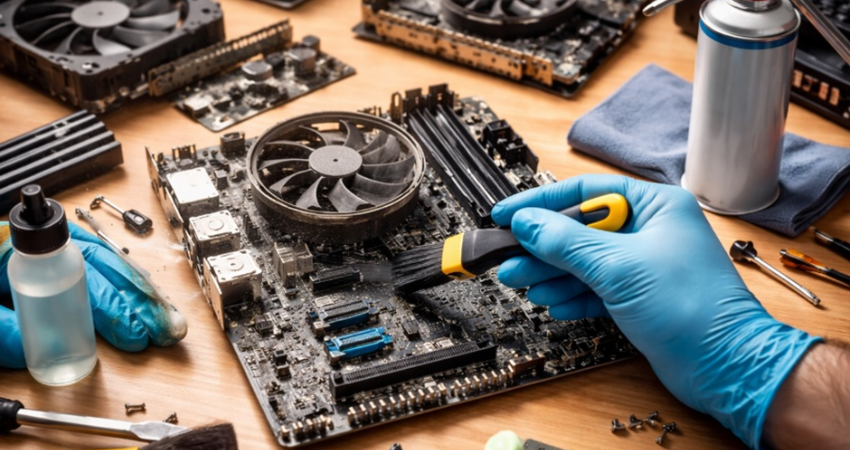
A computer is used every day in many homes and offices. It runs for long hours. It also sits in one place most of the time. Because of this, dust slowly builds up on its parts. Many users clean only the screen or keyboard. They forget about the inside parts. This habit leads to heat issues and slow performance.
Regular cleaning keeps a computer healthy. It helps parts last longer. It also reduces noise from fans. A clean system runs cooler and smoother. You do not need expert skills for basic cleaning. You only need care and patience.
This guide explains which computer parts need regular cleaning and why it matters.
Why Regular Cleaning Is Important?
 Regular cleaning keeps a computer healthy and reliable. Dust and dirt slowly build up inside and outside the system. This affects cooling, speed, and overall stability. Many common computer problems start because of poor cleanliness. Simple and regular cleaning prevents these issues and helps every part work as it should.
- Prevents Overheating
Dust blocks airflow inside the system. Heat gets trapped around components. Cleaning allows proper air movement and keeps temperatures under control. - Improves System Performance
A clean system runs smoother. Fans spin freely and cool parts better. This helps apps load faster and reduces lag. - Extends Hardware Life
Heat and dust wear out parts quickly. Regular cleaning reduces stress on components and helps them last longer. - Reduces Fan Noise
Dust makes fans work harder. This creates a loud noise. Cleaning fans restores quiet operation. - Protects the computer motherboard
Dust on the computer motherboard can cause heat buildup and electrical issues. Keeping it clean improves stability and safety. - Avoids Sudden Shutdowns
Overheating often leads to random shutdowns. Clean parts maintain safe temperatures and prevent crashes. - Improves Air Quality Around the Desk
Dust blown out from dirty systems affects breathing. A clean computer releases less dust into the room. - Saves Repair Costs
By keeping hardware clean proactively, you can prevent damage and reduce the need for costly fixes or replacements.
Part 1: External Computer Parts You Should Clean Often
These parts are touched daily. They collect dust, oil, and germs. Cleaning them improves comfort and hygiene.
- Monitor Screen
Dust and fingerprints accumulate on the screen, reducing visibility. Wipe gently with a soft microfiber cloth. Avoid spraying liquid directly on the surface. Clean weekly for best results. - Keyboard
Dust and crumbs can collect between the keys, preventing them from moving properly. To clean, turn the keyboard upside down and tap it gently. - Mouse
The mouse picks up oil from the hands. Sensors may stop tracking well. Wipe the surface with a dry cloth. Clean the bottom sensor area gently. Do this weekly. - Ports and Connectors
USB ports and audio jacks collect dust. This affects connections. Use a soft brush or air blower. Clean once every two weeks. - Laptop Body or CPU Case
The outer body traps dust in vents. This reduces airflow. Wipe the surface and vents carefully. Clean vents every month.
Part 2: Internal Computer Parts That Need Attention
Internal parts are more sensitive. Clean them carefully. Always turn off and unplug the computer first.
- Fans
Fans pull in air. They also pull in dust. Dust makes fans slow and noisy. Use compressed air to clean blades. Clean every two to three months. - Heat Sink
The heat sink absorbs heat from the processor. Dust blocks heat release. Clean it with air spray. Do not touch it with wet cloth. - Power Supply Unit
The power unit has its own fan. Dust here can cause failure. Do not open it unless trained. Blow air through vents instead. - Hard Drive Area
Dust around storage drives traps heat. This affects data safety. Clean the surrounding area gently. - computer motherboard
This is the core of the system. It connects all parts. Dust here causes short circuits and heat buildup. Use a soft brush and air blower. Clean slowly and gently. Never use liquid. The computer motherboard should stay clean for stable performance.
Common Mistakes to Avoid While Cleaning
Many computer problems happen because of wrong cleaning methods. Users often rush the process or use unsafe tools. These small mistakes can damage parts and reduce system life. Being aware of what not to do is equally vital as mastering proper cleaning techniques.
- Using Water or Liquid Cleaners Directly
If liquid reaches the circuits, it can result in short circuits. Use a cloth for cleaning solution, avoiding direct application to the device. - Cleaning While the Computer Is Plugged In
Power increases the risk of shock and damage. Always unplug the system before starting. - Using Rough Cloth or Paper Towels
These scratch screens and surfaces. A soft microfiber cloth is always safer. - Ignoring Static Electricity
Static can damage sensitive components. Touch a metal surface before cleaning internal parts. - Using Household Brushes
Normal brushes create static and scratch boards. Use soft anti static brushes only. - Applying Too Much Force
Pressing hard can break connectors and pins. Gentle movements are enough for dust removal. - Opening the Power Supply Unit
The power unit stores charge even when unplugged. It should not be opened without training. - Neglecting the computer motherboard
Skipping this area allows dust to build up over time. Careful cleaning of the computer motherboard improves system stability.
How Often Should You Clean Your Computer
Cleaning frequency depends on usage and environment. A computer in a dusty room needs more care. Homes with pets also see more dust.
External parts should be cleaned weekly. Internal parts can be cleaned every two to three months. If you hear loud fan noise, clean it earlier. Regular checks help you decide the right time.
Signs Your Computer Needs Immediate Cleaning
A computer often gives warning signs before serious damage happens. Loud fan noise is one clear sign. It means dust is blocking airflow. Another sign is sudden overheating. The system may shut down without warning. Slow performance is also common. Apps take longer to open. The screen may freeze often.
Visible dust around vents is another signal. Sticky keys and unresponsive mouse movement also point to dirt buildup. If the computer feels hot even during light tasks, cleaning should not be delayed. Regular checks help catch these signs early and prevent bigger issues.
Room Environment and Its Impact on Computer Dust
The room where a computer sits plays a big role in dust buildup. Rooms with open windows collect more dust. Homes near roads also face this problem. Carpets release tiny fibers that enter the system. Pets add hair and dander to the air.
Placing the computer on the floor increases dust intake. A desk is a better option. Keeping the room clean reduces computer dust too. Simple steps like closing unused windows and cleaning the room weekly help a lot.
Basic Safety Tips Before You Start Cleaning

Cleaning a computer is safe when basic precautions are followed. Ignoring safety steps can damage parts or cause injury. A few simple actions before cleaning protect both the user and the system. These steps should never be skipped.
- Shut Down the Computer Fully
Always power off the system completely. Cleaning while it is running can cause damage or shock. - Unplug All Cables and Power Sources
Remove the power cord and connected devices. This prevents electrical accidents. - Remove the Battery in Laptops
If possible, take out the battery. This adds an extra layer of safety during cleaning. - Let the System Cool Down
Hot components can burn fingers and attract more dust. Wait a few minutes before starting. - Discharge Static Electricity
Touch a metal surface before handling parts. This reduces static damage to sensitive chips. - Work in a Dry and Clean Area
Moisture and clutter increase risk. A clean desk with good lighting works best. - Use the Right Cleaning Tools
Soft cloths and air blowers are safest. Avoid sharp or metal tools completely. - Handle the computer motherboard with Care
The computer motherboard is delicate and central to the system. Gentle handling prevents long-term damage.
Why The Computer Motherboard Needs Special Care

The computer motherboard holds all major components together. It has tiny circuits and connectors. Even small dust layers can cause heat traps. Dust may also lead to electrical issues over time.
Cleaning the computer motherboard should be done slowly and carefully. Use only soft tools and air blowers. Never press hard or use liquid. Keeping the computer motherboard clean improves stability and reduces system errors. This part deserves extra attention during cleaning.
Conclusion
Cleaning a computer is not difficult. It only needs time and care. Regular cleaning improves speed and cooling. It also reduces hardware failure. Users often ignore this simple task. This leads to avoidable problems.
By keeping external and internal parts clean, you protect your investment. The computer motherboard and other parts last longer. Your system stays quiet and stable. Make cleaning a habit. Your computer will thank you for it.
FAQs
- Can dust really damage a computer over time
Yes, dust causes serious long term damage. Dust blocks airflow and traps heat. Heat affects chips and circuits. Fans spin faster to cool parts, which wears them out faster. Over time, this leads to shutdowns and hardware failure. Dust on the computer motherboard is especially risky because it can cause short circuits and unstable connections. Regular cleaning reduces these risks and keeps the system stable. - Is it safe to clean internal parts without expert help
Basic internal cleaning is safe if done carefully. Always turn off and unplug the system. Ground yourself before touching parts. Use only air blowers and soft brushes. Do not remove parts unless needed. Avoid liquids completely. Focus on visible dust only. If unsure, professional cleaning is a better option for sensitive systems. - What tools are best for cleaning computer parts
Simple tools work best. A microfiber cloth is ideal for screens and surfaces. Compressed air removes dust from tight spaces. A soft anti-static brush helps with internal parts. Avoid vacuum cleaners because they create static. Never use rough cloth or metal tools. Gentle tools protect parts and give better results.